

 Nofil Khan
Struggling to pick the right settings for your Camera and Controller in EA Sports FC 25?
Don't worry, we are bringing you the best tried and tested settings from FUT Champs Rank 1 Content Creator AuzioMF to make sure you have the best gameplay experience while playing.
While some of these settings are preferential, for the most part you will get a comprehensive angle of the pitch and feel in control of your players when you apply these.
The Best Camera Settings in EA Sports FC 25
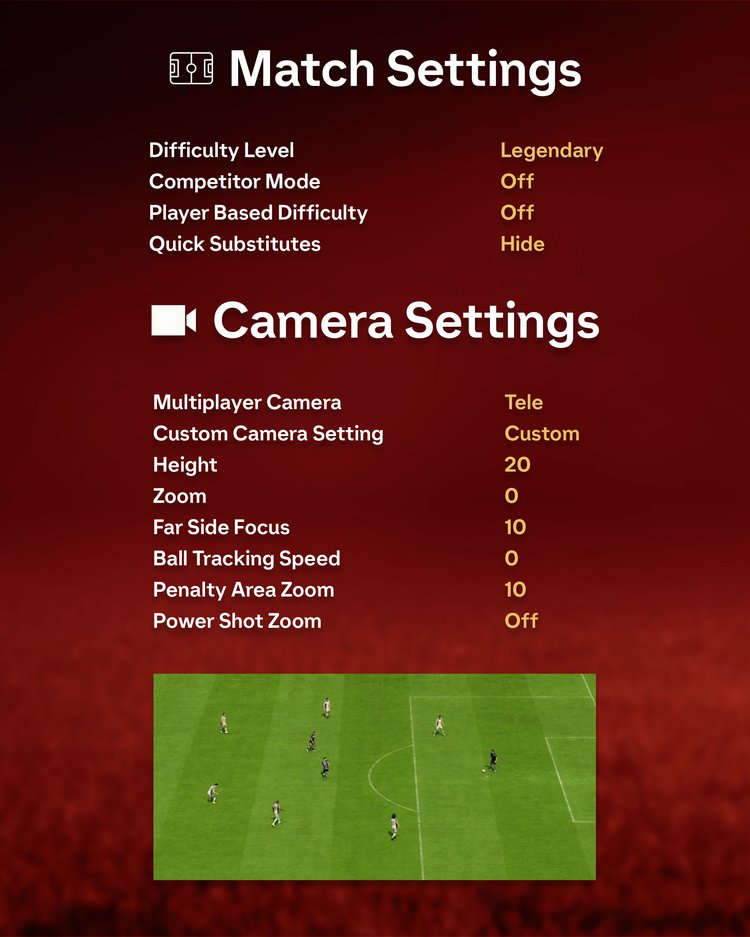
Here are the best Camera Settings in FC 25:
- Multiplayer Camera: Tele
- Custom Camera Setting: Custom
- Height: 20
- Zoom: 0
- Far Side Focus: 10
- Ball Tracking Speed: 0
- Penalty Area Zoom: 10
- Power Shot Zoom: Off
The Best Visual Settings in EA Sports FC 25
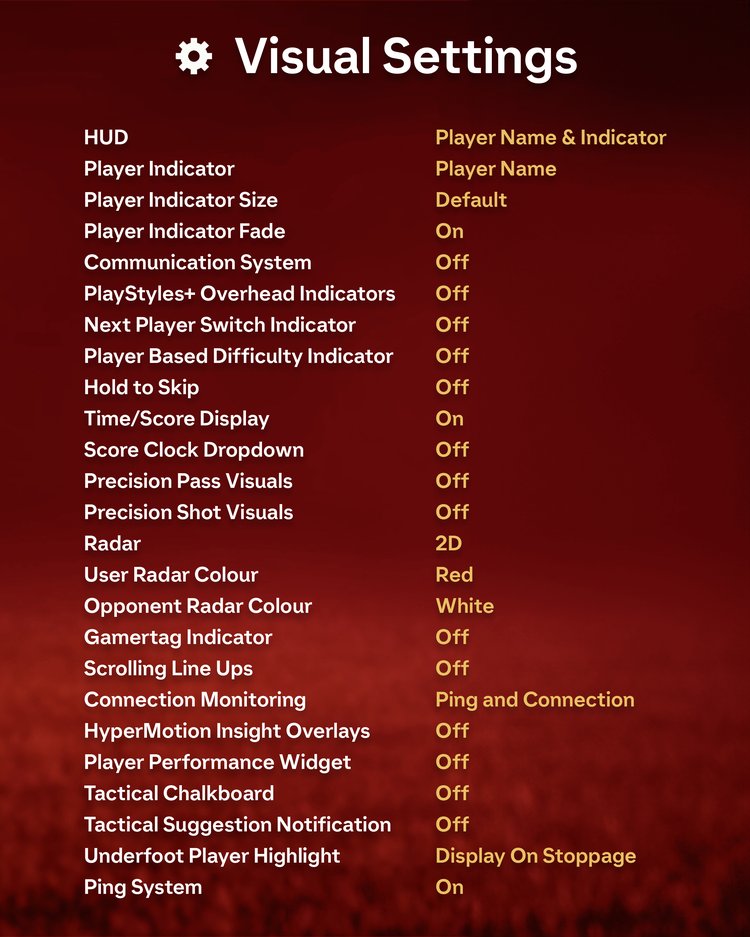
Here are the best Visual Settings in FC 25:
- HUD: Player Name & Indicator
- Player Indicator: Player Name
- Player Indicator Size: Default
- Player Indicator Fade: On
- Communication System: Off
- PlayStyles+ Overhead Indicators: Off
- Next Player Switch Indicator: Off
- Player Based Difficulty Indicator: Off
- Hold to Skip: Off
- Time/Score Display: On
- Score Clock Dropdown: Off
- Precision Pass Visuals: Off
- Precision Shot Visuals: Off
- Radar: 2D
- User Radar Colour: Red
- Opponent Radar Colour: White
- Gamertag Indicator: Off
- Scrolling Line Ups: Off
- Connection Monitoring: Ping and Connection
- HyperMotion Insight Overlays: Off
- Player Performance Widget: Off
- Tactical Chalkboard: Off
- Tactical Suggestion Notification: Off
- Underfoot Player Highlight: Display On Stoppage
- Ping System: On
The Best Controller Settings in EA Sports FC 25
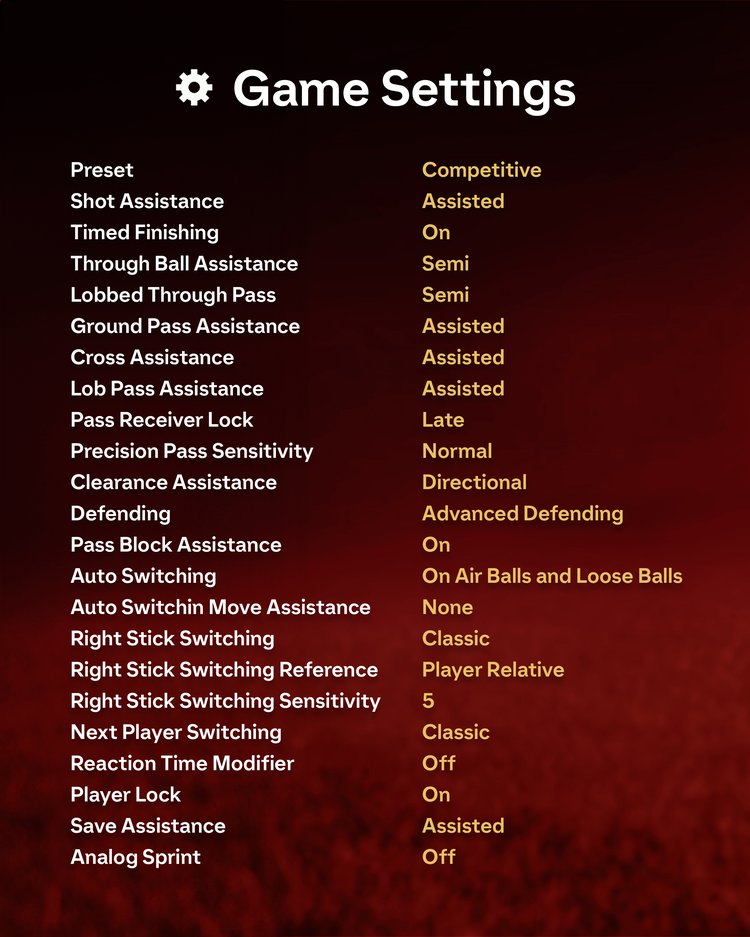
Here are the best Controller Settings in FC 25:
- Preset: Competitive
- Shot Assistance: Assisted
- Timed Finishing: On
- Through Ball Assistance: Semi
- Lobbed Through Pass: Semi
- Ground Pass Assistance: Assisted
- Cross Assistance: Assisted
- Lob Pass Assistance: Assisted
- Pass Receiver Lock: Late
- Precision Pass Sensitivity: Normal
- Clearance Assistance: Directional
- Defending: Advanced Defending
- Pass Block Assistance: On
- Auto Switching: On Air Balls and Loose Balls
- Auto Switching Move Assistance: None
- Right Stick Switching: Classic
- Right Stick Switching Reference: Player Relative
- Right Stick Switching Sensitivity: 5
- Next Player Switching: Classic
- Reaction Time Modifier: Off
- Player Lock: On
- Save Assistance: Assisted
- Analog Sprint: Off
How to change Controller and Camera Settings in EA Sports FC 25?
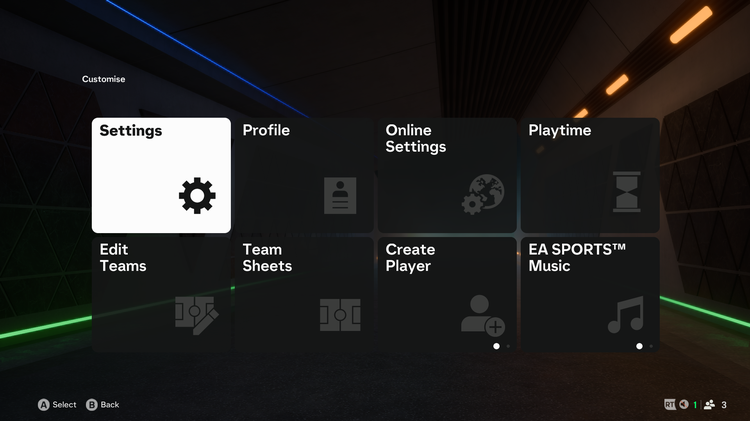
You can change your settings in FC 25 using the Settings Menu found on the Home Screen to the top left of your Screen.
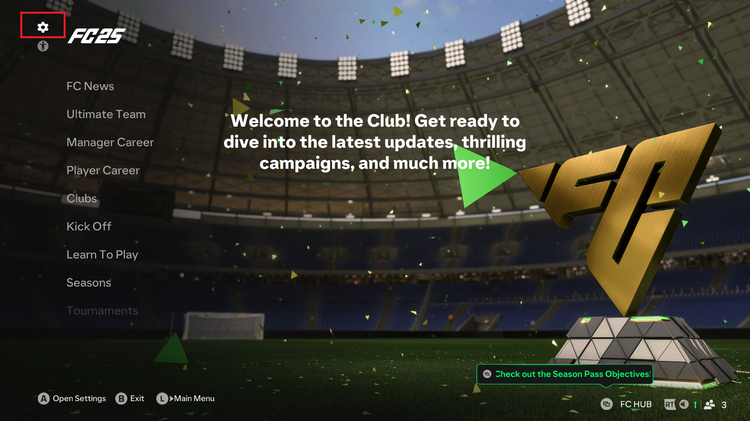
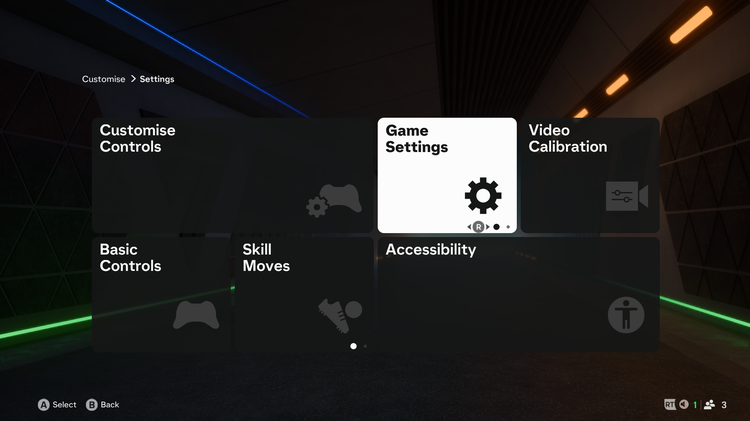
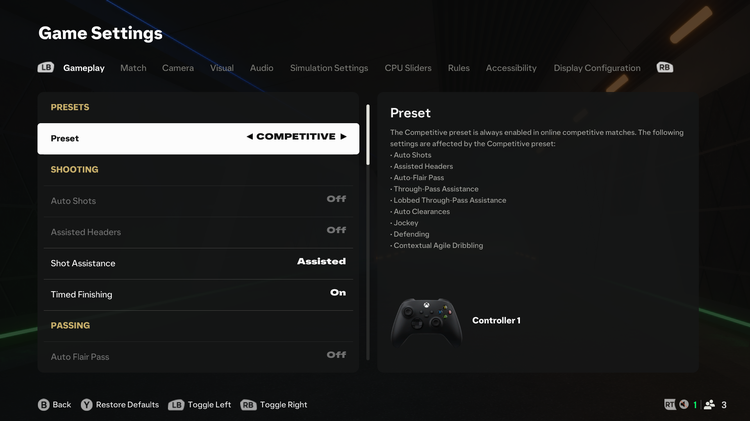
Navigate to Game Settings and scroll through the menu to find all 3 categories and make the necessary changes.
1.) Open Settings Menu
2.) Navigate to Game Settings
3.) Apply Changes
What settings are you currently rocking in FC 25? Let us know below!
You can check out more from AuzioMF on his YouTube Channel here.